//输入后会询问是否以输出额外文件去保存,这里推荐直接回车, //直接回车会在.ssh文件 默认生成id_rsa 和id_rsa.pub两个文件 //如果选择额外输出同样会生成类似的两个文件 Enter file inwhich to save the key (/c/Users/username/.ssh/id_rsa):
// 如果你曾经配置过,现在要重新生成,会询问你是否覆盖,如果你第一次配置,则不会出现此询问 /c/Users/username/.ssh/id_rsa already exists. Overwrite (y/n)? // 接下来它会询问是否需要密码,建议直接回车 Enter passphrase (empty for no passphrase): // 再次输入密码,建议直接回车 Enter same passphrase again: // 提示生成成功,请在C盘>用户>你的用户名>.ssh 去查看 Your identification has been saved in /c/Users/username/.ssh/id_rsa Your public key has been saved in /c/Users/bingq/.ssh/id_rsa.pub SHA256:略 The key's randomart image is:略
// 打开git bash 输入以下内容,通过该地址验证key
//git@github.com不用改成你的邮箱地址,验证地址就是这个
ssh -T git@github.com
// 询问你是否继续连接,输入yes
The authenticity of host 'github.com (xx.xxx.xxx.xx)' can't be established.
RSA key fingerprint is SHA256:略.
Are you sure you want to continue connecting (yes/no/[fingerprint])?
// 如果成功,他会发出以下内容
// 如果失败,请尝试在GitHub上删除生成的key,然后重新添加,注意复制时末尾不要有空格(可能会影响)
// 如果还是失败,请复制你的错误留言
Warning: Permanently added 'github.com,xx.xxx.xxx.xx' (RSA) to the list of known hosts
Hi yourname! You've successfully authenticated, but GitHub does not provide shell access.
总结
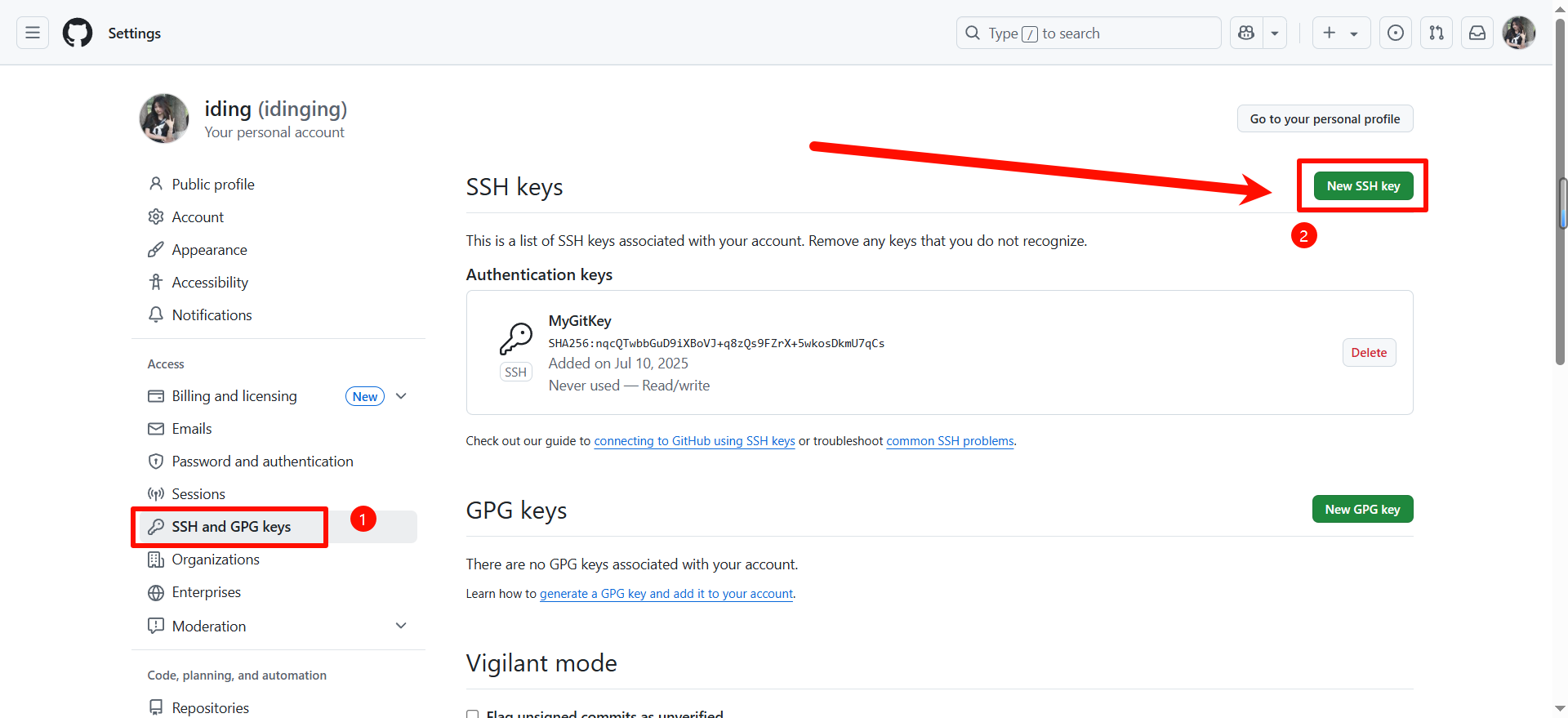
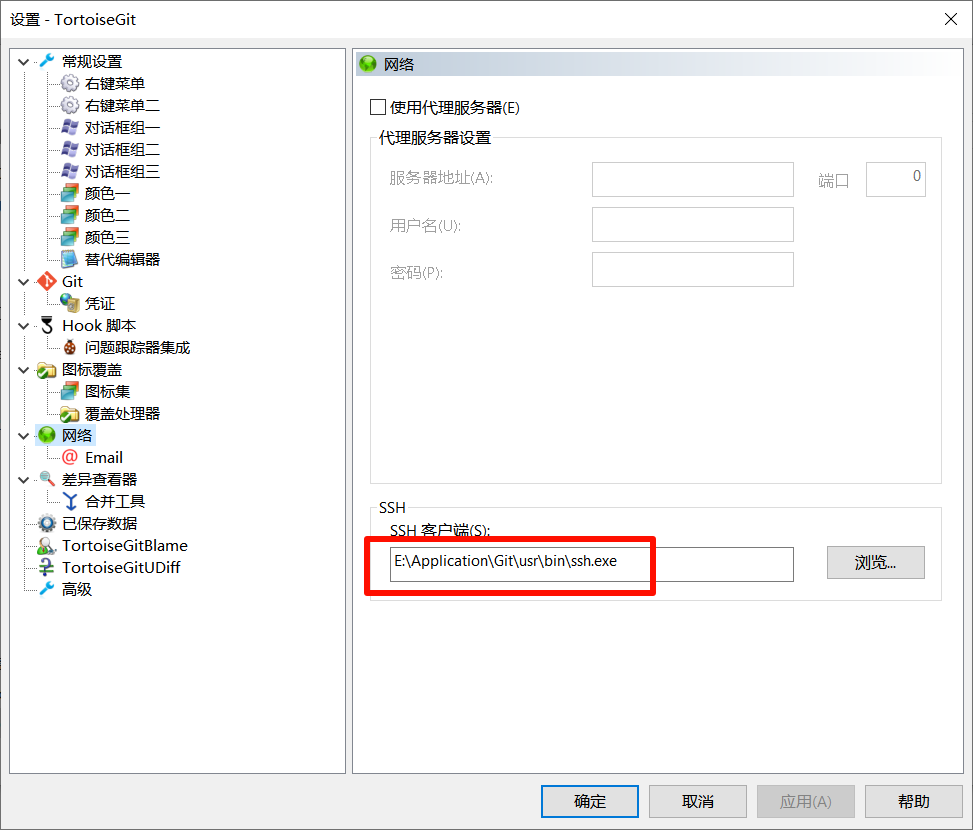
到这一步,便完成了sshkey的配置,你可以到Setting>SSH and GPG keys看到钥匙变绿,在GitHub仓库中复制仓库ssh地址进行克隆尝试,如果你不使用小乌龟,那么本文看到这里便可以了。